Live cursors and confetti with Phoenix
Written by

Chapter
Share article
Category
Lately I’ve been learning Elixir. Used to roaming the wild west of JavaScript, I found Elixir and the Phoenix framework quite elegant and intuitive. One thing which caught my attention about Phoenix was how easy it was to create channels, and how they can help us create great real-time experiences.
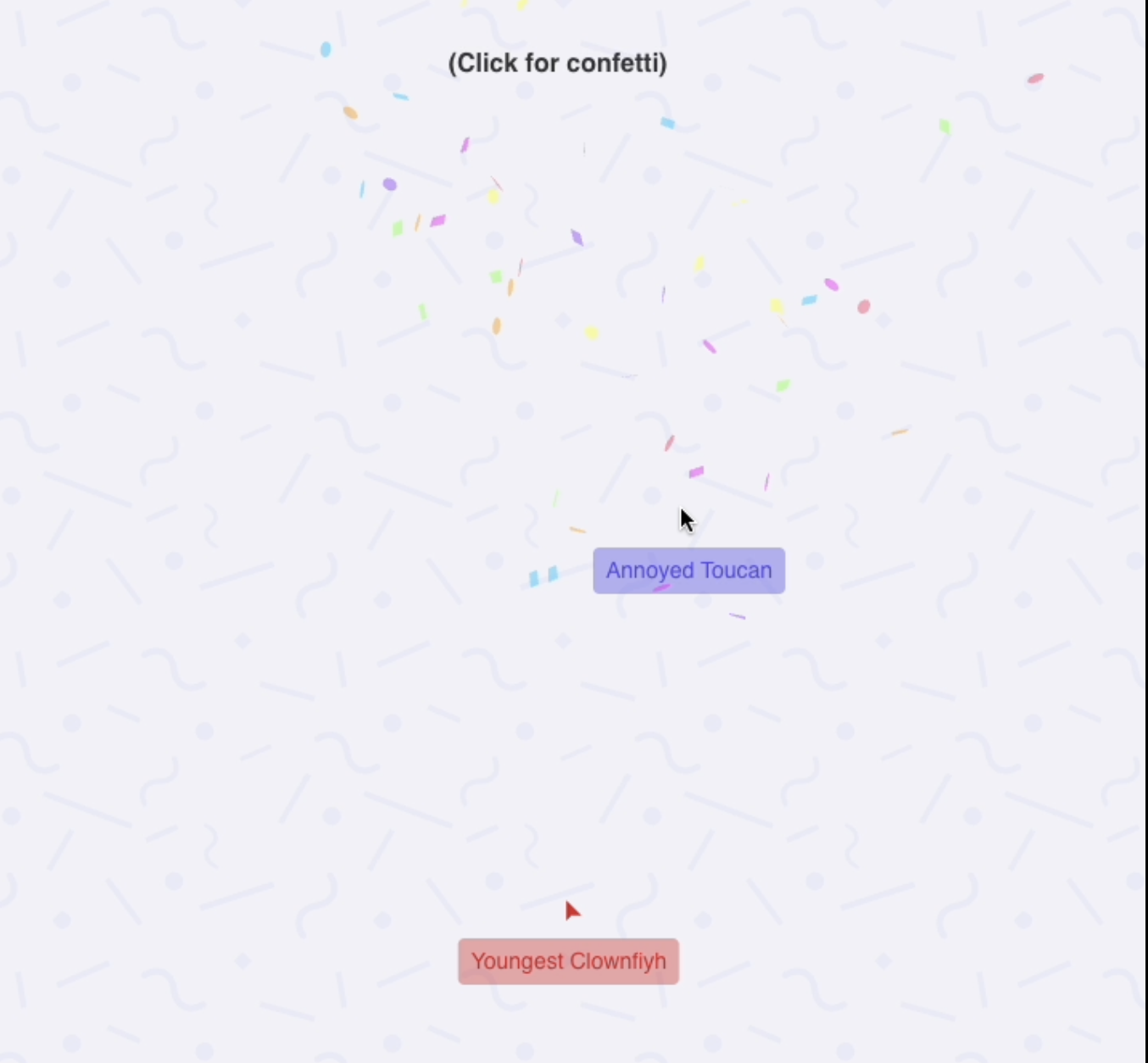
So I decided to try and build something! It’s a pretty simple feature—live cursors. You see this on apps such as Figma, where you can see where other users’ cursors are in real time. And to add a little extra to this experiment, when users click, we get a real-time confetti blast. I won’t go over every detail here, but you can find the complete code on Github.
I should add that while I was at it, I also came across this tutorial by Koen van Gilst, which has a great take on how to achieve the very thing I was looking to do.
Setting things up
The first thing is to create a Phoenix app with the mix phx.new app_name command, then we can get around to adding the channels. You can find the full guide on these steps here. There are several moving parts and concepts to grasp, though Phoenix makes it surprisingly easy to put together.
- Create a socket. This allows clients to connect to the server, and handles the websocket/longpoll transport side of things. We can do this easily with the mix phx.gen.socket SocketName command. If our app were a house, we could think of this as the doorway in.
- Add an endpoint for the socket in endpoint.ex. Keeping up the analogy, this would be the path leading up to the house.
- Add a channel in the socket. Once connected via the socket, clients can join topics in channels. We could think of channels as different floors of the house. Each floor may have several rooms—the topics—where it’s easy to gather interested people and share updates with them. In our case we only need one channel with a single topic, but topics can actually be dynamic and not fully predefined. We could have users join “my_channel:lobby”, or join “my_channel:*”, where * is an id that simply serves to group some people together. So the house is actually Hogwarts, with new rooms being created on the fly.
- Finally, establish a connection client-side. The JS code for this should be generated for you by the CLI, and it’s what kicks off the whole process. By default it will try to connect as soon as the page loads.
Channel events
For our little experiment, there are some basic events our channel needs to handle:
- a user joins the topic
- a user updates their cursor position
- a user triggers the confetti
- a user leaves
Bear in mind that when any of these happen, we need to notify everyone in the channel. We can handle users joining and leaving the channel with the aptly named join and terminate behaviours:
# our topic name:

@name "trails:main"

@impl true

def join(@name, payload, socket) do

  # payload is data sent by the client

  {:ok, assign(socket, name: payload["name"])}

end
We’re storing the username sent by the client on the socket. Later on we’ll see how the client can send the username, but how do we keep track of everyone who is in the channel? Fortunately, we have Phoenix Presence for just that—it keeps track of who’s online in a channel, and even allows us to store data on each user. We’d need something like this:
Presence.track(socket, socket.assigns.name, %{

  position: %{x: 0, y: 0},

})
This way, we can track each user who joins the channel, along with their current cursor position. We can then use the broadcast function to send an update to all the clients:
# Presence.list gives us a list of all users we have called Presence.track on

broadcast(socket, "user_update", Presence.list("trails:main"))
For our custom cursor and confetti events we can use the handle_in behaviour. Each event has its own name and can also receive a payload from the client. So when a user sends an updated cursor position, we can handle it like this:
@impl true

def handle_in("new_pos", payload, socket) do

  # payload is a map with x and y coordinates

  Presence.update(socket, socket.assigns.name, %{position: payload})

  # broadcast the updated list of users

  broadcast(socket, "user_update", Presence.list("trails:main"))

  {:noreply, socket}

end
As you can see, we’re using the username stored on the socket to identify each user. But how does the client send this name?
Adding a LiveView
So far I’ve focused on the server side of things, now let’s look at the frontend. I opted to use LiveView for the frontend here. There’s no other route in the app, so the setup is pretty simple, a single route with one LiveView module.
We can generate each user’s random name in the LiveView (along with other data, such as cursor color), and only then have the client connect to the channel. This initial work can be done in the mount function:
def mount(_params, _session, socket) do

  TrailsWeb.Endpoint.subscribe("trails:main")

  self = %{

    name: Tracker.create_name()

  }

  updated =

    socket

    |> assign(users: Presence.list("trails:main"), user: self)

    |> push_event("mount", self)

  {:ok, updated}

end
First of all, we subscribe to the channel we created previously. This ensures that any broadcast in the channel will be received in this LiveView. We then create a username, get the current list of users in the channel, and store both these pieces of data in the LiveView socket. Finally, we push a “mount” event back to the client with the generated name.
To generate the names, I used the excellent UniqueNamesGenerator package, which creates such great names as Selfish Dolphin or Concerned Swan.
Note that Presence.list can simply be called with the topic name, we don’t actually need the pid or socket. This is very convenient, but doesn’t apply to other Presence features such as track or update.
So, after the setup work we push a “mount” event to the client. Back in client JavaScript land, we can adapt our code to listen to this event in order to join the channel with the random name we received:
window.addEventListener("phx:mount", (event: unknown) => {

   const { user } = event.detail // this has the random name

   let channel = socket.channel("trails:main", user);

   // Join channel

   channel

    .join()

    .receive("ok", (resp) => {

      console.log("Joined", resp);

    })

    .receive("error", (resp) => {

      console.log("Unable to join", resp);

    });

});
Back in the LiveView, as we already have the list of users stored there is enough data to render some cursors:
def render(assigns) do

 <%= for user <- assigns.users do %>

  <div style="left: #{position["x"]}%; top: #{position["y"]}%;" class="user">

    <div id={user.name} class="name">

      <!-- fancy cursor icon here -->

      <%= user.name %>

    </div>

  </div>

 <% end %>

end
For now, the cursors are static, but that’s easy to fix. As the LiveView subscribed to broadcasts sent by the channel, we just need to update our own local copy of the list of users:
def handle_info(%{event: "user_update", payload: payload}, socket) do

 {:noreply, assign(socket, users: payload.users)}

end
This ensures the rendered list of users keeps up to date with the channel.
Updating the cursor position
This whole thing only works if the client actually sends updates to the channel with the updated cursor positions. We can do this with a simple mousemove event:
const handleMouseMove = (event: MouseEvent) => {

  // positions in percentage

  const position = {

    x: (event.clientX / window.innerWidth) * 100,

    y: (event.clientY / window.innerHeight) * 100

  }

  channel.push("new_pos", position)

};

document.addEventListener("mousemove", handleMouseMove);
To recap: this pushes the “new_pos” event to the channel, the channel updates the user data stored in Presence with the received position, and then broadcasts an update that is picked up by all the subscribing LiveViews, who then render the cursors with the new positions.
Optimizations
Things are starting to take shape, but there are a couple of things we could improve:
As we’re sending events on mousemove, a single user could be pushing and receiving more than 100 updates per second. Of course, this is a matter of trade-offs—do you really need to always show the most up to date information? Then maybe it’s worth it. On the other hand, if you don’t mind cursor movements having a slight delay and not being 100% accurate, it might be a good idea to push less frequent updates.
We can address this by adding some “throttling” to our mousemove handler:
const throttledSend = throttle((data: Position) =>

  channel.push("new_pos", data)

, 500);

const handleMouseMove = (event: MouseEvent) => {

  const position = {

    x: (event.clientX / window.innerWidth) * 100,

    y: (event.clientY / window.innerHeight) * 100

  }

  throttledSend(position)

};

document.addEventListener("mousemove", handleMouseMove);
This allows us to send less frequent position updates—every 500ms at most in this example—, but that means cursors will no longer move smoothly across the screen. Instead, they’ll jump around. The solution to this is really simple: CSS transitions. (This once again proves CSS to be the greatest programming language of them all.)
.cursor {

    /* other styles */

    transition: all 0.5s linear;

}
Just make sure the transition duration is equal to the throttling interval. So if we send new positions every 500ms at most, have the transitions last 500ms, so when the cursor reaches its destination a new movement is ready to go.
Here’s another issue:
All cursors are being rendered by LiveView, including our own. This is ok, but it feels slightly off—the motion not totally smooth—as there is inevitably a slight delay as positions need to be sent to the channel before any visible change happens.
My solution here is actually to just update our own cursor client-side with JavaScript. First, when LiveView handles updates, it needs to differentiate between “us” and “them”:
def handle_info(%{event: "user_update", payload: payload}, socket) do

user_list = Enum.filter(list, &(&1.name != socket.assigns.user.name)) # Get all other users

{:noreply, assign(socket, users: user_list)}

end
We can then render “them” separately from “us”:
def render(assigns) do

  ~H"""

  <!-- render self -->

  <div id={assigns.user.name} class="user" data-self>

    <div class="name self">

      <%= assigns.user.name %>

    </div>

  </div>

  <!-- render everyone else, with updated positions -->

  <%= for user <- assigns.users do %>

    <div style="left: #{user.position["x"]}%; top: #{user.position["y"]}%;" class="user">

      <div id={user.name} class="name">

          <!-- fancy svg -->

        <%= user.name %>

      </div>

    </div>

  <% end %>

  """

end
All other users get rendered with updated positions, but we render our own cursor statically, with a data-self attribute, for easy identification. Over in the JS mousemove handler we created previously, besides pushing the event to the channel, we then also update our “own” cursor locally.
let selfElement: HTMLElement;

function updateLocalPosition({ x, y }: Position) {

  if(!selfElement) {

      selfElement = document.querySelector("[data-self]") as HTMLElement;

  }

  selfElement.style.left = `${x}%`;

  selfElement.style.top = `${y}%`;

}

const handleMouseMove = (event: MouseEvent) => {

  const position = {

    x: (event.clientX / window.innerWidth) * 100,

    y: (event.clientY / window.innerHeight) * 100

  }

  updateLocalPosition(position) // Besides pushing the event to the channel, also update our own cursor locally

  throttledSend(position)

};
This leads to immediate updates, and a smoother experience!
Confetti
It’s time for the finishing touch—the confetti blast. There’s really nothing new here, we simply push events on click and listen to channel broadcasts:
import confetti from "canvas-confetti";

const handleClick = (event: MouseEvent) => {

  channel.push("confetti", {

    x: event.clientX / window.innerWidth,

    y: event.clientY / window.innerHeight,

  });

};

channel.on("confetti", (position) => {

  confetti({

    origin: position,

  });

});

document.addEventListener("click", handleClick);
I used the canvas-confetti package here, though there are other options. There’s an impressive amount of confetti packages out there.
Wrapping up
Overall, this was a great exploration and learning experience. It’s the kind of use case that highlights out some impressive Phoenix features and is a lot of fun to build. If you have a JS background like me and are just starting out learning Elixir, I can only encourage you to keep going. It’s worth it.
And if you feel like we should be working together, let this be a sign to get in touch.